 Elena Papadakis
Editor-in-Chief
Omega Watch Checkout Mismatch? Troubleshoot on FashionReps
When buying an Omega-style watch, if the model, color, accessories, or quantity shown on the product page doesn't match the cart, order summary, or checkout page, don't repeatedly click purchase or pay. This issue doesn't necessarily mean fashion-reps or the shopping agent has act
Updated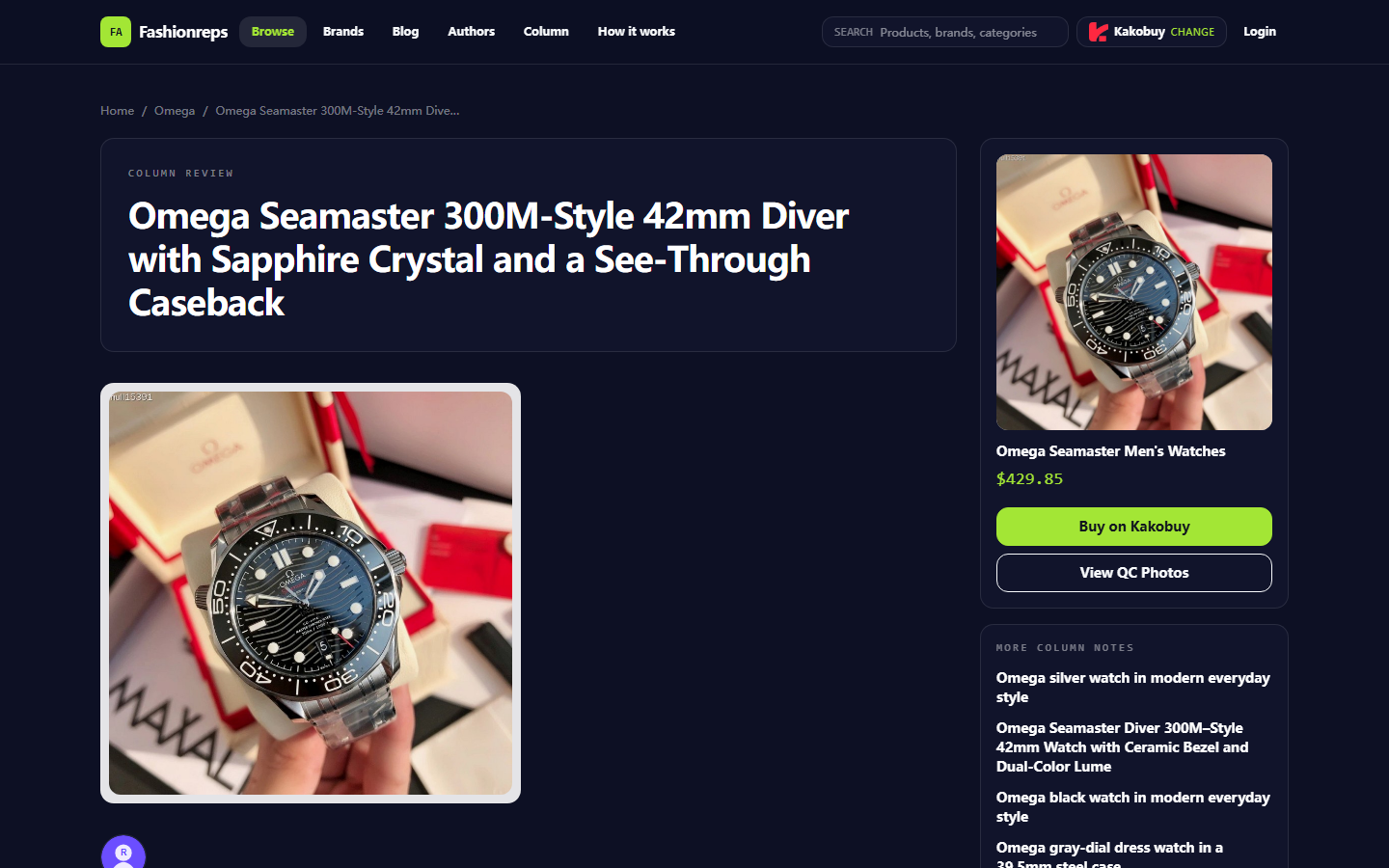

When buying an Omega-style watch, if the model, color, accessories, or quantity shown on the product page doesn't match the cart, order summary, or checkout page, don't repeatedly click purchase or pay. This issue doesn't necessarily mean fashion-reps or the shopping agent has actually malfunctioned; it could be due to unsaved variants, page caching, currency conversion, inventory refresh, or changes in redirect parameters.
This article addresses one specific task: verifying the visible information on the product page against the checkout page to confirm whether the order summary still corresponds to the item you selected. Once complete, you should be able to decide whether to proceed to payment, go back and make changes, or stop and submit evidence to the relevant support team. This article does not cover post-payment refund disputes, authenticity verification, movement performance assessment, or import compliance consultation for destination countries.
Defining the Mismatch Between Omega Watch Product and Checkout Pages
First, write down the "mismatch" as item-by-item verifiable differences instead of vaguely saying there's a page problem. Focus on recording the following fields:
- Product title and style name
- Case size, color, dial, and bezel description
- Variant number or seller options
- Quantity
- Accessory descriptions, such as box, hang tag, or warranty card
- Unit price of the item
- Service fees, international shipping fees, and tax notices
- Shopping agent name
- Estimated total in the order summary
The purchase flow on the fashion-reps product page first asks users to select a shopping agent, and the Buy button then leads to the selected agent's page. The reference price displayed on the product page is not the final amount due; service fees and international shipping fees are subject to the checkout information on the shopping agent's website. For such style products, don't automatically interpret the Omega name on the page as official authentic or officially authorized sale.
Saving Visible Fields from Product Page, Variant Selection, and Order Summary
Before refreshing the page, switching agents, or going back a step, save evidence first. It is recommended to record using the same device and the same browser window to avoid mixing up selection states across multiple tabs.
You can save in this order:
- Open the product page, note the page title, product description, visible price, and currently selected variant.
- Capture the area of the page that includes the product name, variant options, quantity, and price.
- If the page has product images or style thumbnails, note the currently selected image, not just the default image.
- After clicking Buy, on the shopping agent's page, note the agent name, product title, options, quantity, and unit price.
- After entering the cart or order summary, save the item amount, service fee, shipping fee, tax notice, and total.
- Mark each screenshot with a timestamp and cover up order numbers, names, addresses, phone numbers, payment information, and other personal data.
If the discrepancy between the product page and order summary is only service fees or international shipping fees, do not jump to the conclusion of product info errors; if the model, color, size, accessories, or quantity has changed, pause and continue verifying.📋
Verifying Model Description, Color, Accessories, and Quantity Field by Field
Put the product page and checkout page into a verification table. Don't compare titles only, because shopping agents may truncate titles or use the seller's original option names.
| Field to Check | Product Page Should Record | Checkout Page Should Confirm | Action if Discrepancy Found |
|---|---|---|---|
| Style and model description | Full name and style description shown on the page | Item name in cart or order summary | First confirm it's the same seller link and same product line |
| Color and appearance options | Dial, bezel, strap, or material color | Option text or thumbnail in order summary | Don't judge color solely by thumbnail; return to variant selection page to verify |
| Size and version | Case size or version name listed on the page | Option field in order summary | If checkout page lacks size, pause payment and save page evidence |
| Accessories | Visible descriptions such as box, hang tag, warranty card | Configuration in order summary or item notes | Do not automatically regard product page description as locked order configuration |
| Quantity | Purchase quantity | Quantity in cart and order summary | If quantity differs, modify cart first, then re-read total |
| Item amount | Reference price or price before agent | Unit price on agent page | Service fees, shipping, and taxes should be checked separately |
This table is only for identifying differences, not a guarantee of any configuration not shown on the page. For information mentioned on the page such as 42mm case, sapphire crystal, display case back, or dive watch appearance, base it on the visible fields on the current product page and checkout page; do not infer actual size, movement, material, or accessories from images alone.⌚
Checking for Differences Caused by Cart Refresh, Currency Display, and Page Redirect
If fields change after entering checkout, troubleshoot in this order:
- Return to the product page and confirm it's still the same product link, not a related or recommended item.
- Re-select color, size, and other variants, and wait for the page to clearly show the selected state.
- Check if the quantity has been reset to one by the cart's default or retained an old quantity.
- Refresh the cart and confirm that after refreshing, the product name and options are still consistent.
- Check currency and decimal places. The USD reference price and the amount in local currency shown on the agent's website cannot be compared numerically.
- Record item amount, agent service fee, international shipping fee, and tax notice separately; don't attribute all total changes to the product price.
- If you encounter blank options, default options, or unrecognizable variants after jumping from fashion-reps to the shopping agent, stop going further and save the pages before and after the jump.
- Do not open multiple shopping agent tabs and switch back and forth, as this may lead to comparing one agent's cart with another agent's page.
If the discrepancy disappears after refreshing, still keep a record before and after, and confirm that the order summary has been regenerated. Temporary page recovery does not guarantee that the correct options will be retained during payment.🔎
Avoid Repeated Payment Submission Before Information Is Confirmed
When encountering information mismatch, the safest action is to pause payment, not to repeatedly click submit, go back, or recreate the order. Repeated actions may result in multiple cart entries, multiple pending orders, or make it difficult to determine which information is final.
Before continuing, at least confirm:
- The product name or seller link still points to the same item
- Color, size, style, and quantity match the original selection
- Unit price, service fee, shipping fee, and tax notice are individually visible
- The order summary does not show blank variants, default variants, or images that don't match the selection
- The currently logged-in shopping agent account is correct
- The page has no notices of inventory changes, invalid options, or need to re-select
If only the total price changes but the product fields are consistent, first check whether service fees, international shipping, taxes, or exchange rate changes have been added. If the product fields themselves change, do not pay, and do not resubmit the same order in a second tab.💳
Creating an Evidence Checklist for Reporting to Site Support
When providing feedback, only submit the information needed to complete the troubleshooting; do not disclose full orders, passports, payment cards, addresses, or complete shipping labels. You can submit the following:
- Product page URL or page identifier
- Shopping agent name
- Product page screenshot and order summary screenshot
- Field-by-field description of the discrepancy
- Date and time the issue occurred
- Browser, device, and currency information
- Whether you refreshed the cart, re-selected variants, or re-logged in
- Whether payment has not yet been made
Write feedback in verifiable descriptions, e.g., "Product page shows blue dial, quantity 1; order summary shows black dial, quantity 2," rather than just saying "checkout page is wrong." If the problem occurs on the shopping agent's checkout page, also check the order support channel provided by that agent; if the problem occurs on the fashion-reps product page or the redirect button, then report to the site support team. Do not combine the two channels into one fault conclusion.
Before submitting, double-check that screenshots have privacy information covered and that you have not uploaded payment receipts, full addresses, or account security information.🛡️
Re-verifying the Corrected Order Information and Deciding to Proceed or Stop
After the support team or shopping agent makes corrections, don't just rely on the reply text. Reopen the product page, cart, and order summary, and re-check the same set of fields item by item: style, color, size, accessories, quantity, item amount, service fee, shipping fee, and tax notice.
Conditions to proceed:
- Product fields are consistent across product page, cart, and order summary
- Variants are clearly saved, not shown as blank or default
- Fee changes can be explained by service fees, shipping, taxes, or currency
- Shopping agent account and order status are clear
- You have saved the corrected order summary
Situations to stop and wait for further confirmation:
- The checkout page still shows different color, size, style, or quantity
- Variant fields are blank, automatically revert to default, or change with every refresh
- Cannot confirm that product page and checkout page refer to the same seller item
- Total change is inexplicable, or duplicate pending orders appear
- Page requires sending full payment information or personal identification via unsecured means
- Support team only confirms "handled" without providing verifiable order fields
The goal of this troubleshooting is not to prove that a page is definitely faulty, but to ensure that order information before payment is visible, comparable, and traceable. For Omega-style watches, page information alone is insufficient to prove official authenticity, actual movement, material, or long-term performance; if these factors determine your purchase, stop payment and request verifiable product information.