 Elena Papadakis
Editor-in-Chief
Yeezy Color Resets at Checkout: Fix by Variant & Cart
Image shown is a process illustration / diagram, not actual Yeezy product, QC, or firsthand evidence. If a color, size, or style selected on a Yeezy product page reverts to a default value in the cart or at checkout, do not pay yet. You need to confirm whether the final order summary still matches t
Updated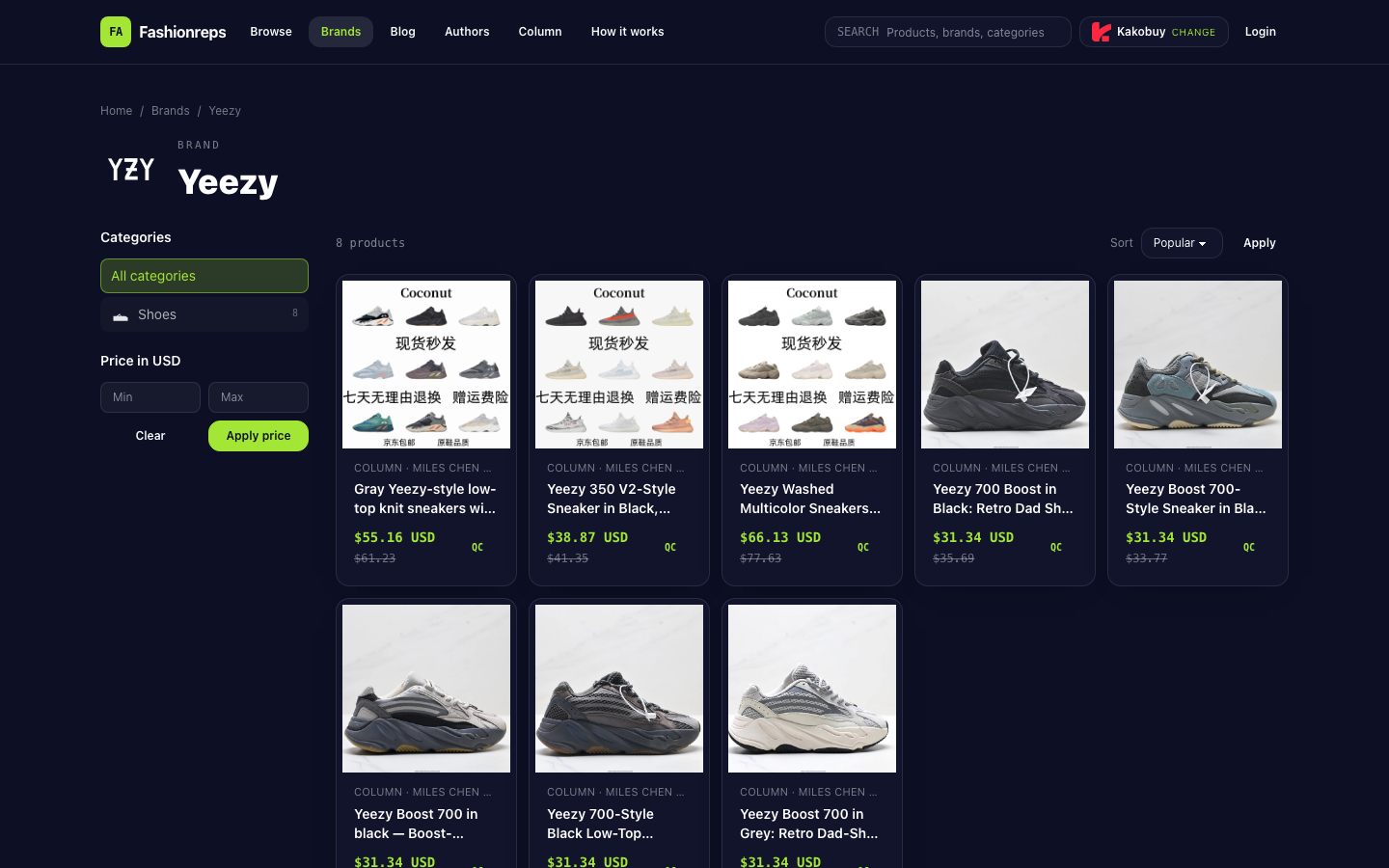

Image shown is a process illustration / diagram, not actual Yeezy product, QC, or firsthand evidence.
If a color, size, or style selected on a Yeezy product page reverts to a default value in the cart or at checkout, do not pay yet. You need to confirm whether the final order summary still matches the variant you originally chose, not just look at the product title or list thumbnail.
First record what is actually selected on the page
After making your selection on the product page, record the following:
- Product title and original product link
- Full name of the color or colorway
- Size
- Style, version, or other variant fields
- Quantity and price shown on the page
- Screenshot of the completed selection
Fashionreps' Yeezy brand page currently displays multiple shoe entries, some with different size ranges or colorway descriptions. For example, the page lists Yeezy 350 V2-style shoes with sizes 36–48, and also lists different Yeezy 700-style entries such as black and grey. The listing information only shows that these options are displayed in the catalog; it does not prove that a specific variant is definitely purchasable or in stock at checkout.
Reproduce the variant reset step by step
Do not refresh repeatedly or resubmit the order. Follow the sequence below and keep the result at each step:
- Open the original product link and confirm you are not entering from an invalid historical page or search result.
- Re-select color, size, and style, and wait for the page to finish loading before taking a screenshot.
- Check whether the page shows a new variant name, price, or stock notice.
- After adding to cart, expand the item details in the cart and verify color, size, and style.
- Refresh the cart page and check if the variant is consistent before and after refresh.
- Go to checkout but do not submit payment, and check the item variant in the order summary.
- If the checkout page shows a default color or size, note the difference from the product page selection.
Use the following table to identify which layer the problem occurs in:
| Check location | What to confirm | How to interpret the result |
|---|---|---|
| Product page | Whether color, size, and style remain the manually selected values | If it reverts to default here, the problem is in the selection or page state stage |
| Cart | Whether item details match the product page | If it changes after adding to cart, focus on variant parameters or cart save results |
| Checkout | Whether the order summary still shows the target variant | If only checkout changes, pause payment and save a checkout screenshot |
Distinguish facts from possible causes
The page text, options, and order summary you have seen are page facts. As for why the reset occurs, without backend records or customer service confirmation, it can only be treated as a cause to be verified, not directly concluded as a platform fault.
Common situations to verify include: the product page selection did not save successfully, a certain color and size combination is unavailable, the cart saved only the item without the full variant, the page restores default parameters after refresh, or the cart and checkout display the variant differently. Changes in login status, session expiration, or the agent platform re-parsing the product link may also affect cart results, but a single page change alone cannot confirm the specific cause.
Also note that the product title is not equivalent to the actual variant. The title may only say "black" or a series name; what really determines the order content is usually the color, size, and style fields. Therefore, you cannot assume the cart and checkout selections are the same just because the titles match.
When to stop payment
Stop payment and seek help first if any of the following occurs:
- The checkout page does not clearly show the selected color or size
- The checkout page shows a different color, size, or style from the product page
- The variant repeatedly reverts to default after refreshing the cart
- The product page allows selecting a variant, but the cart or checkout cannot retain it
- The page shows out of stock, unavailable combination, or price recalculation, without clear explanation of scope
- You cannot confirm which specific variant the final order corresponds to
Stopping payment does not mean you have proven the product or platform is faulty; it is because the current evidence is insufficient to confirm the order content. Processing a variant dispute after payment usually increases verification difficulty.
Who to contact and what evidence to attach
The Fashionreps page states that the buy button on the product page will redirect to the selected shopping agent, and orders, payments, and logistics are handled by the agent website. Therefore, if the problem occurs in adding to cart, checkout, or payment, contact the customer service of the shopping agent that actually handles the order; if only the Fashionreps product page cannot display options correctly, then report the page issue to Fashionreps.
When contacting customer service, attach all of the following at once:
- Original product link
- Screenshot of the selected variant on the product page
- Screenshot of the variant shown in the cart
- Screenshot of the variant shown at checkout
- Specific steps and time when the reset occurred
- Product title, color, size, and style shown on the page
Do not just send "color changed" or "size wrong." Clearly write out the value selected on the product page, the value shown in the cart, and the value shown at checkout, to help customer service determine whether it is a page display issue, a variant saving issue, or the combination itself is unavailable.
Do not pay and do not try your luck by repeatedly adding, resubmitting, or refreshing multiple times until customer service confirms that the final order details match the target variant.